How to reset PostgreSQL database password for SoftActivity software
By default, SoftActivity uses the following PostgreSQL user name: softactivity.
The database password is set by the administrator during SoftActivity product installation.
By default, connections to the database are accepted only from the local computer where the PostgreSQL server is installed. This is done for security reasons.
These instructions apply whether PostgreSQL is installed as part of SoftActivity software or installed separately. For current SoftActivity installations, the PostgreSQL service name is SapgSrv15 and the PostgreSQL command-line tools are in the postgres18\bin folder. For standalone PostgreSQL installations, use the service name and bin folder for your installation.
To reset the PostgreSQL database password in SoftActivity, follow these steps
- Open the
Databasetab in TS Monitor or Activity Monitor settings, then clickCheck Connectionto verify the current connection settings.
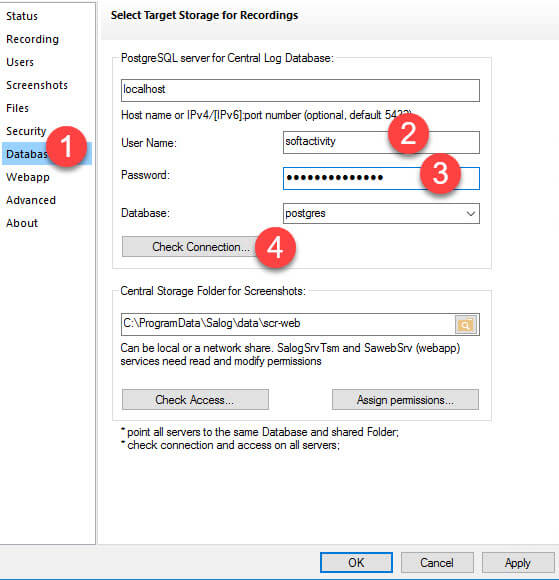
First try the password used to open SoftActivity Monitor or TS Monitor. If it is still not accepted, continue with the password reset procedure below.
Click the
Abouttab, then click thePostgreSQL config fileslink to open the databasepgdatafolder.Back up the
pg_hba.conffile from that folder before making any changes.Open
pg_hba.confin Notepad. Find the local host authentication lines near the bottom of the file. In current installations, they typically look like this:
host all all 127.0.0.1/32 scram-sha-256
host all all ::1/128 scram-sha-256
On older PostgreSQL versions, they may use md5 instead of scram-sha-256.
Temporarily change those lines to:
host all all 127.0.0.1/32 trust
host all all ::1/128 trust
Uncomment the lines if needed by removing a leading # character.
Warning: this change allows any user on the local computer to connect to the database without password authentication. Revert these lines after the password has been reset.
- Restart the PostgreSQL service. For current SoftActivity installations, use:
sc stop SapgSrv15
sc start SapgSrv15
If PostgreSQL was installed separately, restart the PostgreSQL service used by that installation instead.
Make sure the PostgreSQL service starts and reaches the
Runningstate. Ifpg_hba.confwas edited incorrectly, the service may fail to start. If that happens, check Event Viewer for PostgreSQL service errors and fix the file formatting before continuing.Open Command Prompt in the PostgreSQL
binfolder for your installation. For current SoftActivity installations, use one of these folders:
"C:\Program Files\SoftActivity\Activity Monitor\postgres18\bin"
or
"C:\Program Files\SoftActivity TS Monitor\postgres18\bin"
If PostgreSQL was installed separately, open Command Prompt in that installation’s bin folder instead.
- Run this command from Command Prompt:
psql -h localhost -U softactivity -d postgres
Where:
softactivityis the PostgreSQL user namepostgresis the database name
With trust enabled in pg_hba.conf, this command should not ask for a password and should connect you to the database command line.
- Enter the following command to change the password for user
softactivity. Replacemy_secure_passwordwith a unique and strong password:
ALTER USER softactivity WITH PASSWORD 'my_secure_password';
Press Enter to execute it.
Notes:
- do not omit the trailing
; - type
\qand pressEnterto exitpsql
Important: restore
pg_hba.confto its original secure state, or revert the lines you modified earlier. Then restart the PostgreSQL service again.Enter the new password on the
Databasetab in Settings and clickCheck Connectionto verify that it is accepted.