How to monitor remote off-premise computers with SoftActivity Monitor External Agent mode: Admin Guide
SoftActivity Monitor includes a new External Agent mode powered by WireGuard. It is designed for company-owned Windows computers that are off-premise, or for Microsoft 365 / Entra environments where there is no traditional on-prem server infrastructure and the Monitor server cannot rely on LAN-style discovery or direct incoming connections to each client. The monitored computers initiate a secure tunnel to the Monitor endpoint, while logs and screenshots are still stored in your own SoftActivity deployment, which can help organizations that require on-premise data storage for compliance or internal policy reasons.
This guide is intended for IT administrators deploying SoftActivity Monitor in organizations. It follows the same general model as the regular Client App installation guide, but focuses on the new External Agent workflow.
Table of contents
- Overview
- Respecting user privacy
- Requirements and supported scenarios
- Before you begin: choose a DNS name, port, and reachable endpoint
- Enable External Agent mode in SoftActivity Monitor
- Configure the WireGuard endpoint host and port
- Add an External Agent in Monitor
- Enrollment token: what it is and how it works
- Install SoftActivity Monitor Client App with the enrollment token
- Verify that the remote computer is connected
- Reissue an enrollment token
- Managed deployment with Intune and RMM tools
- Troubleshooting External Agent connection problems
- Known limitations
- Appendix: silent install with an enrollment token
- Appendix: rollout checklist for IT administrators
1. Overview
In the traditional SoftActivity Monitor deployment, monitored computers connect to the Monitor server over the local network, or over a company VPN. External Agent mode is designed for computers where that direct server-to-client connection model is not practical. This often means off-premise computers that are not on the office LAN and do not have a VPN connection, but it can also mean Microsoft 365 / Entra-based environments that are cloud-native and do not provide the same on-prem server, naming, and discovery model as a traditional Active Directory network.
With this mode enabled, SoftActivity Monitor runs a secure WireGuard tunnel service on the Monitor computer. Each remote computer is enrolled with its own secure enrollment token. During installation, the Client App uses that token to configure a WireGuard tunnel back to the Monitor endpoint. After that, the computer appears in the Monitor console as an External (WireGuard) agent.
This mode works especially well for:
- company laptops used from home
- mobile users working while traveling
- small branch offices
- Microsoft 365 / Entra-based environments where there is no traditional on-prem server infrastructure
- cloud-native environments where the client can reach a central Monitor endpoint, but the server cannot rely on direct LAN-style client discovery or addressing
It is not intended for personal BYOD devices.
2. Respecting user privacy
Before installing the Client App, you must ensure that you are the owner of the remote computer or you are authorized by the owner, such as your company or organization, to perform the installation and to record user activity. You must also ensure that your organization has a legal basis to monitor users in your jurisdiction.
SoftActivity provides privacy-related settings for this purpose. We recommend that your organization notifies employees about productivity monitoring and obtains user consent where required. Your company computer use policy should clearly explain what information is collected, how it is used, where it is stored, and who can access it. External Agent mode should be used only on organization-owned, IT-managed devices.
External Agent mode does not change these privacy responsibilities. It only changes how the monitored computer connects securely to the Monitor server.
3. Requirements and supported scenarios
Before using External Agent mode, make sure the following requirements are met:
- SoftActivity Monitor 15.0 or later is installed on the Monitor computer.
- SoftActivity Monitor is running in
Server Modeon the Monitor computer. - The Monitor computer is joined to your organization’s
Active Directorydomain or isEntra device joined. - The monitored computers are company-owned, IT-managed Windows devices.
- The monitored computers are joined to the same organization boundary as the Monitor computer: the same AD domain or the same Entra tenant.
- The Monitor endpoint host name or IP address is reachable from the monitored computers.
- The selected UDP port is allowed through Windows Firewall and any perimeter firewall, NAT device, or cloud VM security boundary in front of the Monitor computer.
Supported scenarios include:
- remote employees and hybrid work
- branch offices
- Microsoft 365 / Entra-based environments
- cloud-native environments where a client-initiated connection model is easier to support than LAN-style server-to-client access
- environments where client-to-server connectivity is available, but server-to-client discovery and addressing are unreliable or not desirable
External Agent mode is not supported for:
- personal devices
- macOS devices
- computers joined to a different AD domain or Entra tenant
- Entra workplace-joined only devices
4. Before you begin: choose a DNS name, port, and reachable endpoint
Before enabling the feature in SoftActivity Monitor, decide where the Monitor endpoint will be hosted and what DNS name enrolled computers will use to reach it.
Recommended setup: install SoftActivity Monitor on a cloud-hosted Windows VM. This gives you a stable host name, a predictable public endpoint, and avoids extra office firewall or router configuration. This is usually the best fit for External Agent mode, including Microsoft 365 / Entra environments.
On the Options -> External Agents tab, the product asks for:
Endpoint hostwhich should be a DNS name or IP address of the Monitor computer that enrolled computers can reachPort Numberwhich is the UDP port used by the WireGuard tunnel service
The default port is 35060.
Recommended deployment:
- Create a DNS name such as
monitor.example.com. - Point that DNS name to the public IP address of the cloud VM or other Monitor host.
- If the Monitor computer is behind a firewall or router, forward UDP port
35060to that computer. - Allow the same UDP port in Windows Firewall on the Monitor computer.
Exception:
An internal-only endpoint may work in some environments, but only if every enrolled computer can reliably reach that endpoint. This should be treated as a special case, not the default design for External Agent mode.
Important notes:
- The endpoint host must be reachable from all enrolled computers.
- For off-premise remote users, this usually means a public DNS name or public IP.
- For Microsoft 365 / Entra environments, a stable public DNS name is usually the best choice.
- An internal-only DNS name or IP should be used only if every enrolled computer can reach it reliably.
- Remote users usually do not need any router or port-forwarding changes on their home networks.
- The Monitor side still must be reachable.
- A cloud VM with a known host name is usually the cleanest setup.
- It is best to keep the endpoint host and port stable after rollout.
5. Enable External Agent mode in SoftActivity Monitor
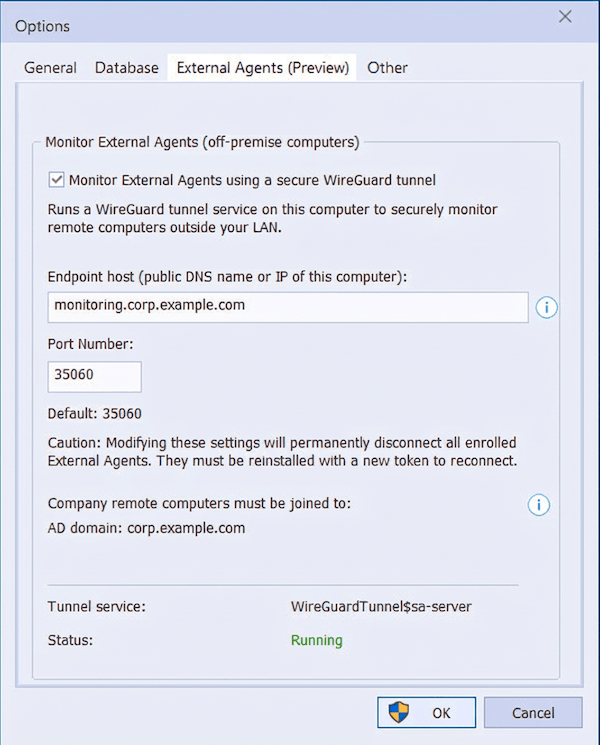
To turn on External Agent mode:
- Start SoftActivity Monitor on the server or administrator’s PC.
- Open
Options. - On the
Generaltab, make sure the application is running inServer Mode. - Open the
External Agentstab. - Select
Monitor External Agents using a secure WireGuard tunnel. - Enter the endpoint host.
- Leave the default port
35060, or enter another UDP port if your environment requires a different one. - Click
OKto apply. - Optionally reopen the
External Agentstab and verify that the tunnel service status is shown as running.
SoftActivity Monitor automatically generates the WireGuard key pair required for this feature. You do not need to create WireGuard keys manually.
6. Configure the WireGuard endpoint host and port
When choosing the endpoint host and port, use values that enrolled computers can actually reach in your deployment.
Recommended configuration:
- Use a stable public DNS name instead of a raw public IP whenever possible.
- Use the default UDP port
35060unless you have a conflict or a security policy requiring another port. - Make sure that the DNS name resolves correctly from the monitored computers that will use it.
- Make sure the selected UDP port is allowed on your perimeter firewall and on the Monitor computer.
If your Monitor computer is installed on an internal server behind a company firewall and the monitored computers are off-premise, the firewall or router must forward the selected UDP port to that server.
If you are intentionally using an internal-only endpoint, public port forwarding may not be necessary. In that case, use a DNS name or IP that every enrolled computer can reach directly.
Do not change the endpoint host or port after you have already enrolled many External Agents unless necessary. Existing enrolled External Agents are tied to that endpoint. If you later change the WireGuard endpoint settings, previously issued tokens may no longer be valid for new installs, and already enrolled external agents may need to be re-enrolled with a new token.
7. Add an External Agent in Monitor
After External Agent mode is enabled, add each remote computer in the Monitor console before installing the Client App on that computer.
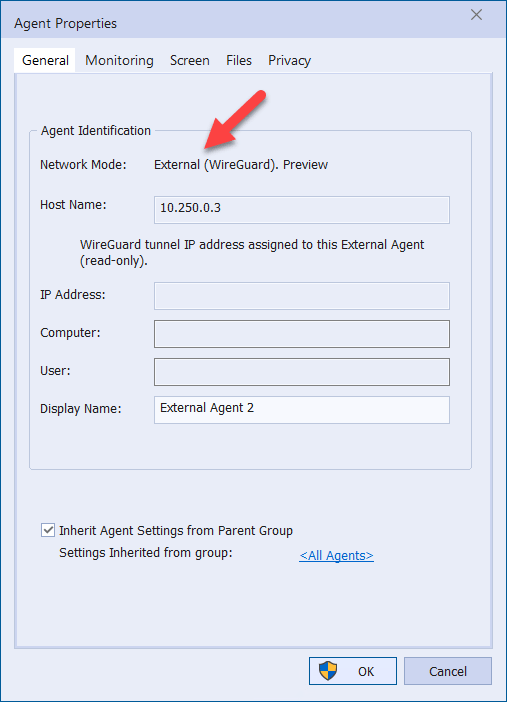
To add an External Agent:
- In SoftActivity Monitor, click
Add External Agent, or use the same command from the agents list context menu. - Enter a display name for the remote computer, such as the employee name or device name.
- Complete the dialog and click
OK. - SoftActivity Monitor creates a new External Agent record and reserves a WireGuard tunnel IP address for it and a private key.
- The
Enrollment Tokendialog appears.
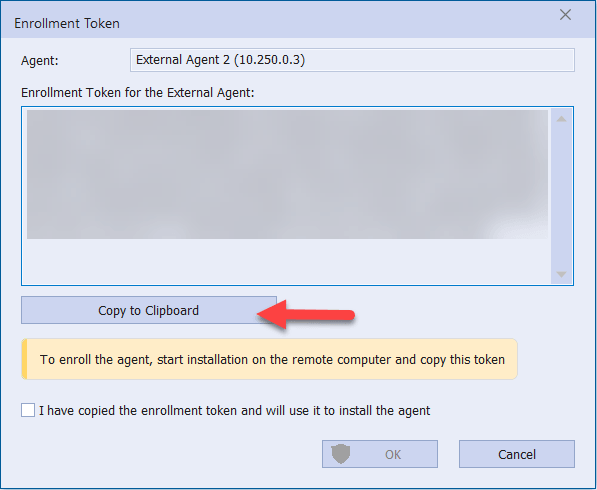
- Copy the token and keep it secure until you use it on that specific remote computer. Treat it as a secret credential.
Each External Agent gets its own identity and its own assigned tunnel IP address. This address is managed by SoftActivity Monitor and cannot be edited manually.
8. Enrollment token: what it is and how it works
The enrollment token is a secure text string generated by SoftActivity Monitor for one specific External Agent.
It contains the information needed for the Client App installer to set up the secure tunnel, including:
- the assigned WireGuard tunnel IP address for that agent
- the Monitor endpoint host and port
- the server WireGuard public key
- unique client tunnel credentials for that agent
- organization restrictions that limit which computers can enroll
- an expiration time
Important rules for enrollment tokens:
- One token is intended for one External Agent.
- Do not reuse the same token on multiple computers.
- Treat the token like a secret credential.
- Store it securely and share it only with the administrator or deployment process that will install that one specific computer.
- If the token expires before use, generate a new one. Tokens expire after about 30 days.
If a token is entered on a computer that does not belong to the same organization boundary, the installer rejects it.
9. Install SoftActivity Monitor Client App with the enrollment token
The Client App installation is similar to a normal local installation, with one extra step for the enrollment token.
To install the Client App on a target computer:
- Copy
amagent.exefrom the SoftActivity Monitor Agent folder to the target computer, or deliver it using your normal software deployment process. - Log on to the target computer as a local administrator, or connect using your remote support tool.
- Run
amagent.exe. - Select
VisibleorStealthmode according to your company policy. - Enter the Agent password as you normally would.
- When the installer shows the
External Agent Enrollment Tokenpage, paste the enrollment token generated in Monitor.
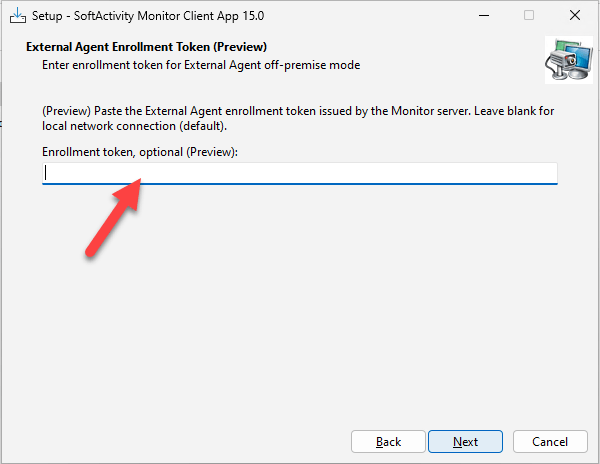
- Continue the installation.
- Wait for the setup to complete.
Handle the token carefully during deployment. It should be treated the same way you would treat any other installation credential or secret.
If the token is valid, the installer configures the WireGuard client service automatically and installs the Client App in External Agent mode.
If you leave the token field blank, the installer performs a regular Local network installation instead of External Agent mode.
Important: the normal remote installation command from SoftActivity Monitor is intended for Local network deployments and is not supported for External Agent mode. In this workflow, the Monitor computer does not connect directly to the target computer to perform installation. Install the Client App locally, through your remote support tool, or through a managed deployment system such as Intune or an RMM platform.
10. Verify that the remote computer is connected
After installation finishes, return to SoftActivity Monitor and verify that the new computer comes online.
Check the following:
- The computer appears in the agents list.
- Its
Network Typeis shown asExternal (WireGuard). - The agent changes to online status.
- You can open its monitoring window.
- Live data, logs, or screenshots begin to arrive as expected.
You can also open Agent Properties for that computer. For an External Agent, the host field shows the assigned WireGuard tunnel IP address and is read-only. Each External Agent gets its own static WireGuard IPv4 address assigned by SoftActivity Monitor.
If the computer does not appear immediately, wait a minute and then refresh the agents list or reopen the monitoring window.
11. Reissue an enrollment token
Use Reissue Enrollment Token when:
- the original token expired before installation
- the remote computer was reimaged or replaced, or you need to reinstall the Client App on the same computer
- you want to rotate that External Agent’s WireGuard connection credentials
- the previous enrollment must be reset
To reissue a token:
- In SoftActivity Monitor, right-click the existing External Agent.
- Click
Reissue Enrollment Token. - Copy the new token from the dialog.
- Run the Client App installer again on the remote computer and use the new token. An uninstall is not required.
After a token is reissued, the current enrollment for that External Agent is reset. The computer will not reconnect until it is installed again with the new token.
12. Managed deployment with Intune and RMM tools
External Agent mode supports managed deployment, but it is different from a regular Local network deployment because each monitored computer needs its own enrollment token.
That means the best deployment tools are systems that can target a specific computer with a per-device install command.
Recommended choices:
Microsoft Intuneis usually the best fit for an internal IT team already managing company PCs through Microsoft 365 / Entra.RMMtools are usually the best fit for MSPs and multi-customer environments.- Older AD-based deployment methods can still work, but they are not the preferred model for this External Agent workflow.
For the full Intune deployment process, see How to install SoftActivity Monitor Client App using Microsoft Intune.
Recommended managed deployment workflow:
- In SoftActivity Monitor, create one External Agent record per computer.
- Generate one enrollment token per computer.
- Keep a secure mapping between computer name and token.
- Use Intune, or your RMM platform, to run a silent install on that one computer with its assigned token.
- Do not reuse the same token on multiple computers.
For the exact silent install command line to use in Intune, RMM, or other software deployment tools, see 15. Appendix: silent install with an enrollment token.
This device-targeted managed deployment approach is important because each External Agent has its own identity and its own secure tunnel configuration. Treat every token as a secret credential during deployment.
13. Troubleshooting External Agent connection problems
If the computer does not connect, use the checks below.
1. The installer says the enrollment token is invalid or rejected
Possible causes:
- the token was copied incorrectly
- the token expired after about 30 days
- the computer is not joined to the same AD domain or Entra tenant as the Monitor computer
- the computer is Entra workplace-joined only
What to do:
- reissue a new enrollment token in SoftActivity Monitor and use the new token
- generate a new token if the old one is no longer valid
- make sure the target computer is company-owned and correctly joined to your organization’s AD or Entra tenant
- use a token created for this device only
2. Installation finishes, but the computer stays offline in Monitor
Check the following on the Monitor side:
Options -> External Agentsis enabled- the endpoint host is correct
- the UDP port is correct
- the WireGuard server tunnel service
WireGuardTunnel$sa-serveris installed and running - Windows Firewall allows the selected UDP port
- your perimeter firewall or router forwards the selected UDP port to the Monitor computer if needed
- if you are using an internal-only endpoint by exception, the chosen internal DNS name or IP really resolves and is reachable from the monitored client computers
Check the following on the remote computer:
- the Client App installed successfully
- the computer has internet access
- local firewall or security software is not blocking the installed services
- the installed Client App version matches the SoftActivity Monitor version
- the WireGuard client tunnel service
WireGuardTunnel$sa-clientis installed and running - the WireGuard
sa-clientnetwork adapter is present in Windows network adapters SamSvcAgent service is installed and running
If needed:
- restart the
WireGuardTunnel$sa-clientservice - restart
SamSvc - check Windows Event Viewer for service or tunnel errors
- enable debug logging for both services from an elevated PowerShell or Command Prompt session:
sc.exe stop "WireGuardTunnel$sa-client"
sc.exe start "WireGuardTunnel$sa-client" /log
sc.exe stop SamSvc
sc.exe start SamSvc /log
- review the debug logs in
C:\ProgramData\SoftActivity\sa_wg_svc_dbg_client.txtandC:\ProgramData\SoftActivity\amsvc_dbg.txt
3. The computer shows a join or authorization problem
External Agent mode only works for company devices joined to the same organizational boundary as the Monitor server.
If the computer is:
- not joined to AD or Entra
- joined to a different AD domain
- joined to a different Entra tenant
- Entra workplace-joined only
the token validation or runtime connection will be denied.
In that case, either fix the device join state or use regular Local network or VPN-based monitoring instead.
4. The server does not know the client computer’s IP or DNS name
This is normal in External Agent mode and is one of the reasons to use it.
Unlike LAN mode, External Agent mode does not require the Monitor server to know each client’s DNS name, external IP address, or direct incoming connection path. Each client initiates the secure connection to the Monitor endpoint instead.
This is why the mode fits Microsoft 365 / Entra environments where organizations may not have a traditional on-prem server and where LAN discovery and server-initiated client addressing are not available or not reliable.
5. The connection stopped after changing endpoint settings
If you changed the endpoint host or WireGuard port after deploying External Agents, some or all existing agents may stop connecting.
In that case:
- verify the new DNS and firewall settings
- reissue enrollment tokens
- reinstall affected External Agents with the new tokens
6. Antivirus or endpoint security interferes with installation
As with the regular Client App installation, antivirus or endpoint protection can interfere with setup files or installed services.
If needed:
- add the recommended SoftActivity exclusions
- record an installation log by re-running the installer with
/log=log.txtcommand line parameter, and review log.txt for errors at the end of the file.
14. Known limitations
Keep these limitations in mind:
- supported only for company-owned, IT-managed Windows devices
- not supported for personal BYOD computers
- not supported on macOS devices
- the Monitor computer must be AD domain joined or Entra device joined
- remote computers must match the same organization boundary
- the Monitor endpoint host and UDP port must be reachable from enrolled computers
- each External Agent needs its own token
- the built-in remote installation command from Monitor is intended for
Local networkdeployments, not External Agent mode - changing endpoint settings later may require re-enrollment of existing External Agents
If your environment does not meet these requirements, use the standard Local network or VPN-based deployment instead.
15. Appendix: silent install with an enrollment token
You can deploy the Client App in silent mode and include the enrollment token on the command line.
Example:
amagent.exe /VERYSILENT /SP- /NORESTART /SUPPRESSMSGBOXES /NOCLOSEAPPLICATIONS /NewPsw=YourStrongAgentPassword /etoken="PASTE_ENROLLMENT_TOKEN_HERE" /log=install-log.txt
Notes:
/etokenenables External Agent mode only when the token is valid.- If the token is invalid in silent mode, installation is aborted.
- Keep the token in quotes.
- Treat the token as a secret. Protect deployment logs, scripts, command lines, and management systems that may store it.
- Use
/OldPsw=...when reinstalling over an existing Agent that already has a password.
If you omit /etoken, the installer uses the regular Local network installation mode.
16. Appendix: rollout checklist for IT administrators
Use this checklist when planning a real deployment:
- Confirm that the Monitor computer is in
Server Mode. - Confirm that the Monitor computer is AD domain joined or Entra device joined.
- Decide where the Monitor endpoint will be hosted. Recommended: a cloud-hosted Windows VM with a stable public DNS name.
- Choose a stable DNS name for the Monitor endpoint.
- Decide which UDP port to use. Default is
35060. - Open that UDP port on Windows Firewall and on any external firewall, router, or internal network boundary where needed.
- Enable
External Agentsmode in SoftActivity Monitor. - Test with one pilot computer first.
- Create one External Agent record and one enrollment token per computer.
- Do not reuse a token across multiple computers.
- Install the Client App on the pilot computer and verify it appears as
External (WireGuard). - Verify that logs and live monitoring work as expected.
- Prepare your silent deployment or remote support workflow for broader rollout.
- Keep a process ready for reissuing tokens if a computer is replaced, reimaged, or misses the token expiry window.