Questions about SoftActivity Products
Q: Which SoftActivity computer monitoring software is right for me?
A: Opt for SoftActivity Work, our cloud-based SaaS solution, perfect for monitoring users within your organization, whether they’re remote or on-site. This comprehensive tool is designed for flexible work environments and supports remote teams, on-site employees, and even those on-the-go. Plus, you can access it from anywhere without needing to install a server-side component, making employee monitoring more convenient and efficient.
SoftActivity Monitor is your choice for monitoring office-based users working on their office-based workstations, whether they’re desktops or laptops. Monitored workstations have be connected on a Local Area Network (LAN) or remotely via VPN connection. You will need to install a server part of this software either on your server, or admin’s PC. This on-prem software is also your best choice if your organization is subject to regulatory requirements that necessitate on-premise data storage.
If you’re running terminal servers with either Windows Remote Desktop Services or Citrix XenApp, then you need SoftActivity TS Monitor on-premise software.
For monitoring users on a Windows Server OS you need either TS Monitor or SoftActivity Work product.
Q: How much can computer monitoring really save my company?
A: We’ve seen customers achieve hundreds of thousands of dollars in payroll savings and other efficiencies over several years. If SoftActivity helps you identify and retrain or replace even one non-performing employee, your firm can easily see value of tens of thousands of dollars.
Q: How does SoftActivity ensure the privacy of our employees?
A: SoftActivity takes employee privacy seriously. Our software is designed to balance the needs of productivity and privacy. While it provides comprehensive insights to help businesses understand and improve employee productivity, it is not intended to invade personal privacy. To further protect privacy, SoftActivity includes a feature to create a private list of sensitive apps and websites, which will not be recorded during monitoring. All activities monitored are strictly related to the use of company resources. SoftActivity’s cloud-based software is built without a keylogger feature, ensuring no sensitive data like passwords can be recorded for enhanced security and privacy. SoftActivity software offers a Visible mode, often referred to as ‘Freelancer Mode’. We encourage companies to use this mode to inform users about monitoring of their work computers, gain their consent to collection of data, and provide them with the option to pause recording at any time. Organization can set how long user logs will be kept, and has an ability to delete recorded user logs at any time.
Furthermore, SoftActivity recommends companies to disclose the use of monitoring software to their employees and ensure compliance with all local and national privacy laws. Remember, transparency and respect for privacy can foster a more trusting and productive work environment.
Q: Is computer monitoring software easy to use?
A: Our products give you a simple dashboard that lets you view computers on your network with just a few clicks. If you’ve ever used any kind of business software before, you’ll get the hang of Activity Monitor very quickly.
Q: Is SoftActivity compliant with GDPR and other privacy regulations?
A: Yes, SoftActivity is designed with data privacy regulations, such as GDPR, in mind. We implement a range of security measures and procedures to ensure that customer data is handled responsibly and securely. This includes encrypting data at rest and in transit, regular security reviews, and adhering to the principles of data minimization and ‘privacy by design’ in our software. We also provide features and functionalities in our software to support our clients in complying with these regulations in their own use of SoftActivity products. For instance, we offer a visible mode of operation that allows users to be aware of and consent to monitoring. Additionally, SoftActivity provides configurable options that allow organizations to decide which types of information they wish to monitor, offering the flexibility to avoid recording sensitive data. SoftActivity lets organizations to manage their data retention term. They can easily set the duration for which recorded logs are kept and have the flexibility to delete user logs at any time, for example, by request from a user. As an organization using SoftActivity, you assume the role of the data controller and are expected to follow our Terms of Service. We encourage clear communication and policy enforcement within your team to maintain transparency and compliance with local laws and regulations.
Q: How can I view multiple computer screens from a single screen?
A: Just like you’re a security office looking at multiple screens of real-time close-circuit video, you can easily look between your employees’ computer screens in real time using our Activity Monitor software.
Q: Can I take multiple screenshots of a user’s activity?
A: Yes. As well, SoftActivity products all make it easy to view multiple screenshots in a timeline so you can see patterns of activity.
Q: How do SoftActivity products monitor website usage?
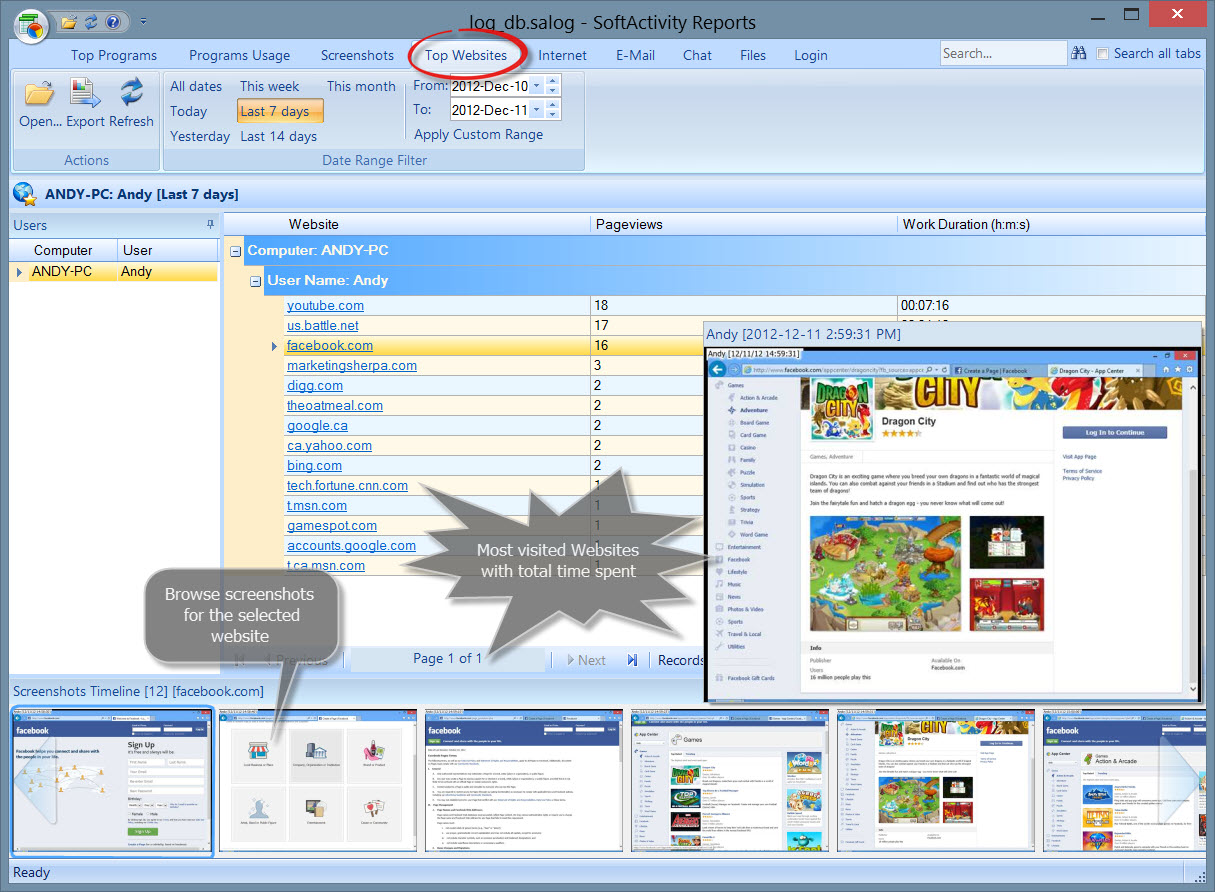
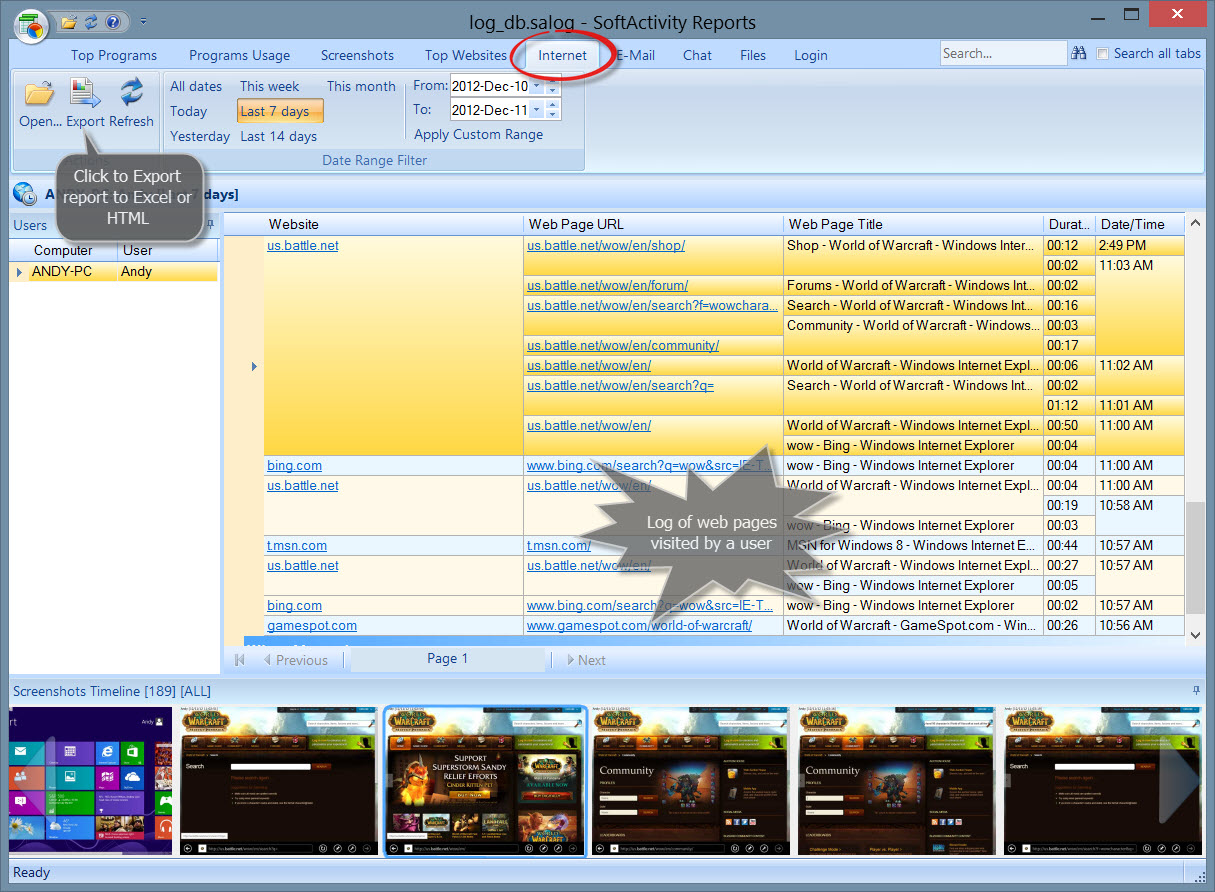
A: Check recorded logs not just of the website address, but also see time visited, search terms entered, total time spent on each website and more. To view these reports open Central Log Database and click Top Websites or Internet tabs.
Q: How are emails recorded?
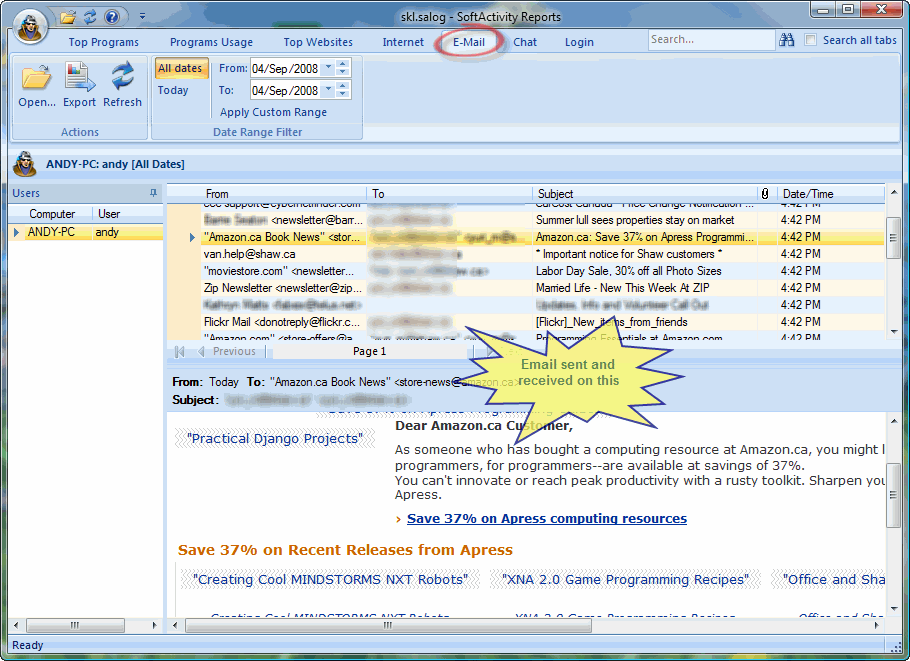
A: You can see a copy of their every send and received email including full message text, subject, to, from, and a list of attachments. Also with our keylogger and Intellisnap™ screenshots technology, you see what your employees are putting into online webmail, like Gmail, outlook.com etc. Email recording and keylogger technology is only available in the on-premise products.
Q: Can I view apps used by my employees?
A: Yes! See a list of all apps they’re using as well as the time spent in different applications. Easily detect if your employees are using non-approved applications.
Q: Is monitoring my employees legal?
A: Yes, it is legal in most jurisdictions around the world to monitor employees on the company’s computers. Although, we can not guarantee the legality or advice on legal requirements in your particular jurisdiction and do encourage you to seek advice of a local legal council. It is also common practice among companies and organizations to monitor employees to help prevent intellectual property theft, fraud, harassment and other hazards of the office workplace.
It is a good practice to create Computer Use Policy in the company that sets out what is permitted on company’s computers and reserves the company’s right of monitoring their equipment and communications. Have employees read and sign the policy. In addition, all of our monitoring software allows you to show a warning to monitored users and have them agree with monitoring of their activity. By default, our monitoring software does not notify users about monitoring and works completely invisibly for them.
To further protect your employees’ privacy rights, our products allow you to fine tune types of their activity you want to record. For example, you may choose to turn off keystrokes recording to avoid recording password, turn off recording of email, IM, web history, and screen.
Read more about best practices and issues with monitoring your staff in our employee monitoring guide.
In addition you must follow SoftActivity Acceptible Use Policy and Terms of Service.
Q: How many computers can I monitor?
A: We have customers successfully using Activity Monitor to monitor from one to as many as several thousands computers.
- Activity Monitor Server is a high-performance application that can efficiently run on your Windows Server or computer with multi-core CPU(s).
- It can connect to thousands of computers at once.
- Central log database for storing logs can handle huge volumes of data using enterprise-class PostgreSQL database server. We have customers with 50+GB databases and 500+GB of screenshots. It’s limited only by hard drive space and performance. For large databases we recommend RAID connected hard drives or SSD.
- Activity Monitor allows you organize a large list of computers by custom groups and change any settings at once for the whole group or even for all Agents.
- In addition, you can install several Activity Monitor Serves on different servers machines to monitor separate departments in a larger organization.
- Agent application (client part of the system) can be easily deployed to all desired computers in your organizations via Group Policy in Active Directory, or installed remotely by administrator
Q: What license size do I need to buy for Activity Monitor?
A: Activity Monitor licensing is based on the number of computers where you install Monitor or Agent. It includes all computers that you are going to monitor and computers from which monitoring is done. Every manager’s or administrator’s PC used for monitoring requires a license. If you install Monitor on a server for collecting logs, it requires a license too.
You will not be able to use it on more computers than the license size you purchase. Activity Monitor is available in several packages of fixed license size: 3, 6, 12, 25, 50, etc. (View available licenses)
Example #1: 2 managers want to monitor employees on 10 computers in the office. You need 12 computers license.
Example #2: 1 manager wants to monitor 14 computers in the office. You need 15 computers license (buy 12 computers base license + 3 Extra licenses).
Example #3: Company wants to monitor 150 employee computers. For this large number of monitored computers we recommend to install Activity Monitor Server on Windows Server machine to keep Central Log Database (1 license). For example, 10 managers will to monitor their departments with Activity Monitor Consoles, that adds 10 more licenses. Each of 150 employee computers requires a license to install Agent. The total number is 161. For this number you can go with 200 computers license pack or 100 computers base license pack + 61 Extra Licenses.
Q: I have purchased Activity Monitor 6 computers license. We have just bought 2 more new computers for our office for new employees. How can I monitor our new computers?
A: You need to buy 2 Extra Licenses for your new computers and add them to your base license of Activity Monitor. You will then have 8 computers license.
You also have an option to upgrade to the next available base license size. For example, you can upgrade from 6 computers to 50 computers license. It can be purchased with the discount on our
web site. Contact us for license size extension
Q: What happens after I purchase SoftActivity software?
A: After you pay you will instantly receive the download link for the fully functional product and your license key. Delivery is performed via email. Then you may right away download and install the full version of Activity Monitor. Sometimes, in rare cases you may be required to wait for a few hours before you receive the email with the download link and registration information.
Q: Is there any hidden fees?
A: With our on-premise software there is only one flat fee that you pay once and own the license for the product forever. Period.
With SoftActivity Work cloud based software there is a recurring monthly or annual charge for your subscription. There is no other fees.
Q: Do I get technical support with my purchase?
A: All registered users get 1 year of technical support for free. To get support after initial 1 year you need to purchase 1-year Updates and Support Plan before the end of first year. It also gives you updates and more
Get tech support now at SoftActivity Online Support Center
Q: How about the version upgrades after I buy this software?
A: We work on improving our software constantly. Product updates and fixes are available often. Registered users get all version upgrades for free during 1 year since purchase. We will email you update instructions as soon as new version is released. To stay with the latest version of Activity Monitor after initial 1 year you need to purchase 1-year Updates and Support Plan before the end of first year. It also gives you access to beta versions, tech support and more.
Q: Can our organization buy SoftActivity software with Purchase Order?
A: We accept Purchase Orders from companies and organizations for the amounts starting at $300 USD. We allow a payment deadline of 30 days from purchase (NET 30 terms) to qualified companies. To start with a purchase order, contact our Sales Department for a quote: sales@softactivity.com
Q: I purchased your software with my credit card. What charge will I see in my credit card statement?
A: Please note that the charge on your credit card statement sent to you by your credit card company will appear as FS *deepsoftware or previously: BLS*DEEPSOFTWARE or BLS*MONITRSOFTWARE . Contact our sales department if you have any questions regarding a credit card charge.
Q: Is this a subscription, do we need to pay anything after 1 year?
A: SoftActivity Monitor and TS Monitor on-premise software license is not a subscription. The license is perpetual, you can buy the license once and use it forever. You even get 1 year of updates and support absolutely free. After the first year you may continue using the software as you did before. You also have an option to pay for another year of support and updates. Renew Updates and Support Plan here.
SoftActivity Work, cloud based productivity tracking SaaS is a recurring subscription, either monthly or annual. With this product your credit card will be charged periodically for the duration of your subscription.
Technical questions.
For more details information read:
Q: Computer in the Remote Agents list shows up as Offline, but actually it is turned on
A: First make sure that you installed Agent on the remote computer. Then check if Activity Monitor and Agent are not blocked by the firewalls. You can allow all communications for them in the firewall settings or open ports described in one of the questions below. More info in the knowledgebase
Q: Antivirus software prevents me from installing Activity Monitor, Agent or TS Monitor. Or it disables my monitoring software
A: If you are knowingly installing Activity Monitor, Agent or SoftActivity TS Monitor software on a computer that you own, or have the owner’s authorization, you may easily disable warnings in the antivirus. This will help you avoid detection of this monitoring software by your antivirus and ensure that monitored users do not detect presence of monitoring software.(Detailed Info)
Q: How can I install Activity Monitor Agent on the remote computer?
A: The easiest way is to install Agent remotely from your computer with Activity Monitor Server. Open Activity Monitor and click Install Agent. Enter or select a name or IP address of the remote computer you want to monitor. The computer should be in Domain and you must have Domain Administrator user privileges in the Domain. Enter Agent password you want to assign to this Agent. Click Install. Agent will be installed in background invisibly for the monitored user. Click Search network for new Agents button and the remote computer becomes ready for monitoring right away. No computer restart is required.
You may also install Agent locally on the remote computer. In Activity Monitor click Install Agent, then click Locate Agent Installer link at the bottom. Copy amagent.exe file onto a flash drive or shared network folder. Go to the remote computer, login as a user with local Administrator rights and run the amagent.exe from the above location. Follow easy installation instructions, assign Agent password and finish installation. Return to Activity Monitor and click Search network for new Agents.
There is also an option to easily mass deploy Agent to multiple computers in your domain via Active Directory Group Policy. For more detailed information read Activity Monitor – Help menu – Contents – How to Install Agent
Q: Can Activity Monitor connect and monitor my employees’ computers via Internet?
A: Basically it can, but there are certain limitations. You need direct TCP connection between computers, i.e. you should be able to ping the remote computer from your computer with Activity Monitor. There are a few options to monitor computers via Internet:
- VPN connection to your remote office or remote computers. Make sure you enter correct host name or IP address of the remote computers in Agent Properties window, that resolves correctly via VPN. Activity Monitor supports IPv4 and IPv6
- NAT port forwarding for remote office. To connected to computers located behind a router in a remote office, you can setup port forwarding:
- You will need to know Internet host name or public static IP address (v4 or v6) of the remote office.
- Each computer behind a router needs to be assigned an unique Agent port. Default port 15163. Assign custom ports to computers starting from 15165, 15166, 15167, and so on. To assign Agent port on a computer, create registry value “agentport” of type DWORD in HKEY_LOCAL_MACHINE\SOFTWARE\SoftActivity and enter the port number. Restart SamSvc service in Windows to apply the new port.
- Go to the router settings and add port forwarding for each of the above assigned ports to the local IP address of that computer with the same port number. For example: forward port 15165 to computer1:15165; 15166 to computer2:15165, etc.
- Open Activity Monitor in your remote office, click Add Agent. Enter the remote office host name followed by :port. For example: myoffice.domain.com:15165. Click OK. It should connect in a few seconds (Agent icon becomes blue). If not, check the firewall settings in remote office. Add all computers to the list with the same host name and unique assigned port numbers.
- Open Agent properties and enter Display Name for each added computer to make it easier for you to recognize the computers, such as Dan’s PC, Accounting, etc.
- Via remote access software or Remote Desktop. Install Activity Monitor Server on one of the computers in your remote office network. Connect to that computer remotely using a Remote Desktop or any third party solution, such as TeamViewer, GotoMyPC, etc. Open Activity Monitor there. Then you can work with Activity Monitor as if you were sitting on that computer.
By default, Agent can store up to 500 MB of screenshots in a local cache, which is enough for a few days. Then, older screenshots are removed. If your computers get taken off the premises for longer periods of time, you can increase the limit to a few GB in Agent Properties->Screen tab. You can set this just once for <All Agents> group.
In addition, you may connect to the remote computer for live monitoring and download logs, in case it connects to the office via VPN.
Q: How to uninstall Agent from the remote computer?
A: Remotely: open Activity Monitor, right click a computer name in the list and click Uninstall Agent. Repeat for all computers in the list.
Or locally on a monitored computer: login as a user with Administrator rights, press Win+R and run this command: agentcmd /uninstall. Click OK.
Q: How to check if employees play games or visit inappropriate websites during work time?
A: Install Activity Monitor on your computer. Install Agent on your employees’ networked computers you want to monitor. You can monitor those remote computers in real time if you want.
Then you may close Activity Monitor on your computer. After a while you can open Activity Monitor and click Open Central Logs Database button. In SoftActivity Reports click a user name on the left side.
Select Top Programs tab on top to view what programs he used and for how long, including games.
Click Top Websites to view what websites this user visited.
Q: What network protocols does SoftActivity Monitor use for communications?
A: It uses TCP IP protocol with TLS v1.3 encryption. SoftActivity Monitor server uses IP ports 15163 (TCP), 15165 (UDP). Agent (SoftActivity client app) uses port 15163 (TCP) and 15164 (UDP). TCP ports should be open for the software to communicate properly. UDP ports are optional and only used to auto-detect new Agents in your subnet.
If you have a firewall installed, you need to enable communications through these TCP ports. Process name for firewall rule is C:\Program Files\SoftActivity\Activity Monitor\swatcher.exe
Agent process name for the firewall rule is amsvc.exe.
A rule in Windows firewall for Agent is created automatically during installation of Agent. Nothing else needs to be done if you don’t use any custom firewalls.
Q: I have installed Activity Monitor Agent on a computer in LAN. And this computer does not appear in Remote Agents List in Activity Monitor
A: Click Search Network for new Agents to find computers in your network with installed Agent. If the computer does not appear in the list please check these possible reasons:
- Make sure you have selected <All Agents> group and Show All Agents in ON below in Agents list.
- Remote computer might be in another network segment/subnet of your LAN or connected via VPN. Such computers cannot be detected automatically. In this case you should add it manually. Click Add Agent and enter its IP address or DNS host name, then click OK.
- Agent is not installed on the remote computer or connection is blocked by firewall. See other questions on this page for solution and check this knowledgebase article
Q: I can see the remote computer in the list, but when I double-click it, Activity Monitor does not connect to Agent
A: Possibly, TCP communications between Activity Monitor and Agent are blocked by a firewall or remote IP address or host name is incorrect. Add rules allowing TCP communications for Agent and Monitor in case you have a firewall other than Windows Firewall.
Open Agent Properties in Activity Monitor and verify that it shows correct IP address. Activity Monitor supports IPv4 and IPv6.
Also you can run “ping host_name” from Command Prompt and verify that it resolves to a correct IP address. Activity Monitor requires direct TCP connection to Agents. To connect via Internet you should either have VPN connection, or know host name or static IP address of the remote computer. More details in this knowledgebase article