Enterprises with sensitive data can experience data leaks when a hacker gains access to their sensitive data hubs and can copy or move the data unbeknownst to the enterprise.
Having reliable and robust data leak prevention software in place can alert the enterprise to the breach to mitigate and stop the data leak from getting worse. Additionally, monitoring software can detect anomalous behaviors and potentially prevent a data leak from happening.
Businesses in information-intensive industries must securely receive, send, store, and access large quantities of sensitive information. They must also follow a dizzying array of compliance and regulatory requirements.
If you operate in an information-intensive industry and you are required to collect and store a large amount of sensitive data, personally identifiable data, health data, or banking data, then you need to have a data leak prevention tool and system in place.
Businesses usually conduct employee evaluations on an annual basis to review how well an employee is doing, their work duties and habits, and compare what the employee did against what was expected of them.
An employee performance evaluation is an extremely useful tool that businesses use to gauge time theft, work expectations, raises, promotions, and bonuses.
However, if you operate a remote workforce, you might find that evaluating your remote employees is easier said than done. It is different from the way in-person office personnel can assess their employees.
To help new remote managers handle this challenge, we’ve documented the best way to evaluate a remote employee:
Microsoft Defender Antivirus in Windows Security, formerly Windows Defender Antivirus on older Windows versions, may sometimes detect SoftActivity Monitor application or Agent files on monitored computers as a threat and remove them. It may categorize them as MonitoringTool:Win32/ActivityMonitor, PUA:Win32/SoftActivity (Potentially Unwanted Application), or similar.
There is no virus or malware in SoftActivity Monitor software. The software only does what is declared in its features described on the website: it records user activity on company-owned computers to help with insider threat detection and employee productivity tracking. The SoftActivity application folder can be excluded from scanning by an administrator to allow this software.
Microsoft Defender Antivirus exclusions reduce scanning coverage for the selected path. Limit the exclusion to the SoftActivity Agent folder and apply it only on computers where SoftActivity Agent is authorized by your organization.
Add manually via Windows Security in Windows 11/10
Note: if your organization uses Group Policy in Active Directory to manage Microsoft Defender Antivirus exclusions, scroll down for how to add an exclusion there. This is the recommended way for domain-managed computers. If you add an exclusion rule to a computer locally, it may later be removed or overridden by Group Policy or endpoint security policy.
If you want to add an exclusion to one or several computers in your organization that are not managed by Group Policy, follow the steps in this section.
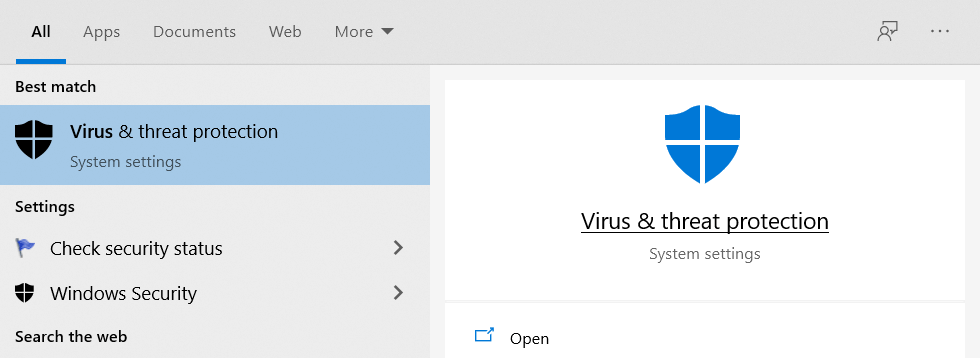
Click the Windows Start button and start typing virus, then click the Virus & threat protection link to open the Windows Security settings page:
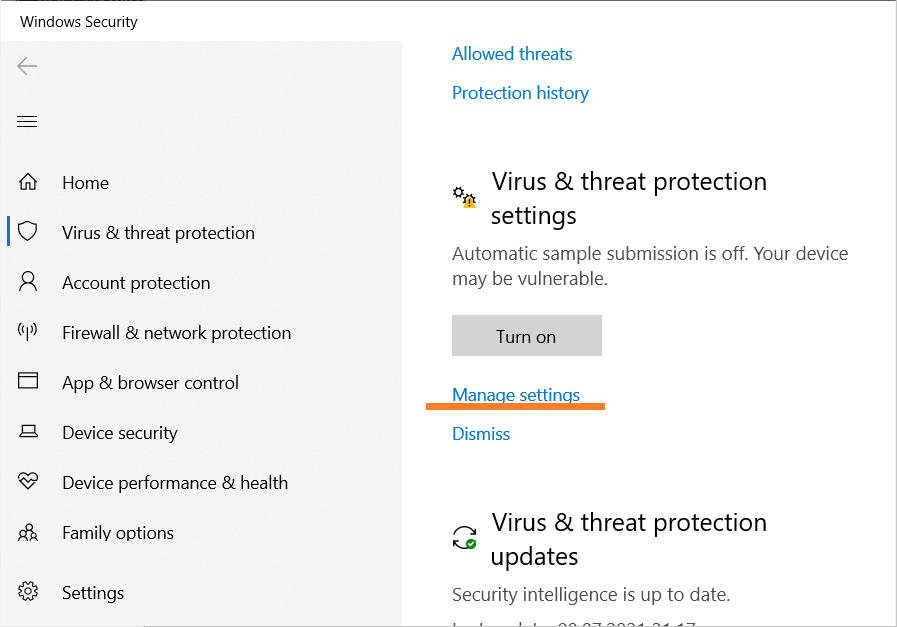
Scroll down to the Virus & threat protection settings section on the page, then click Manage settings:
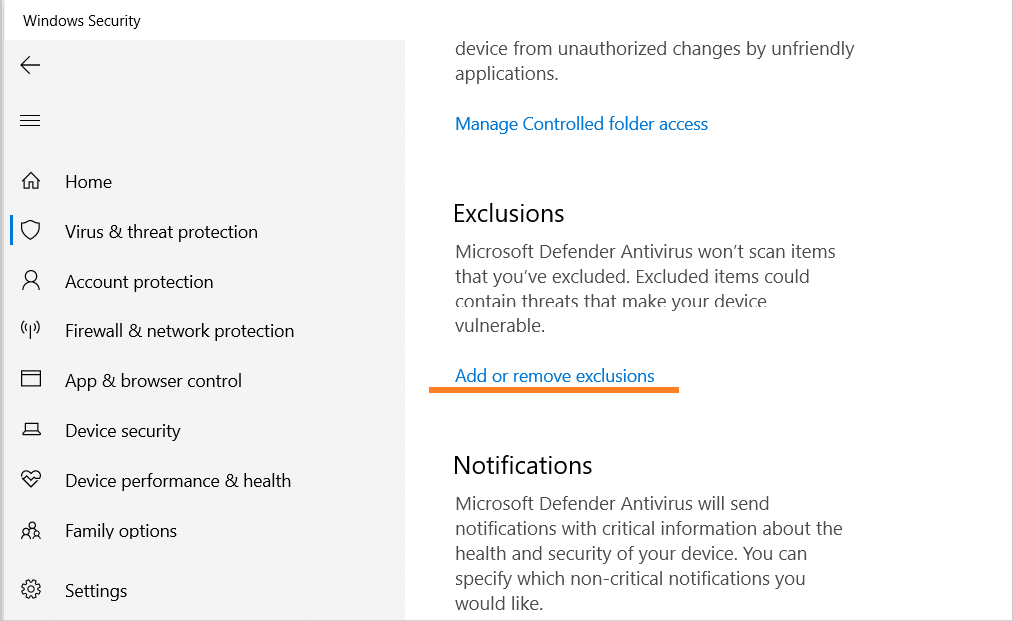
On the next page, scroll down to the Exclusions section and click Add or remove exclusions. On some older Windows versions this area may still be described using the legacy Windows Defender name:
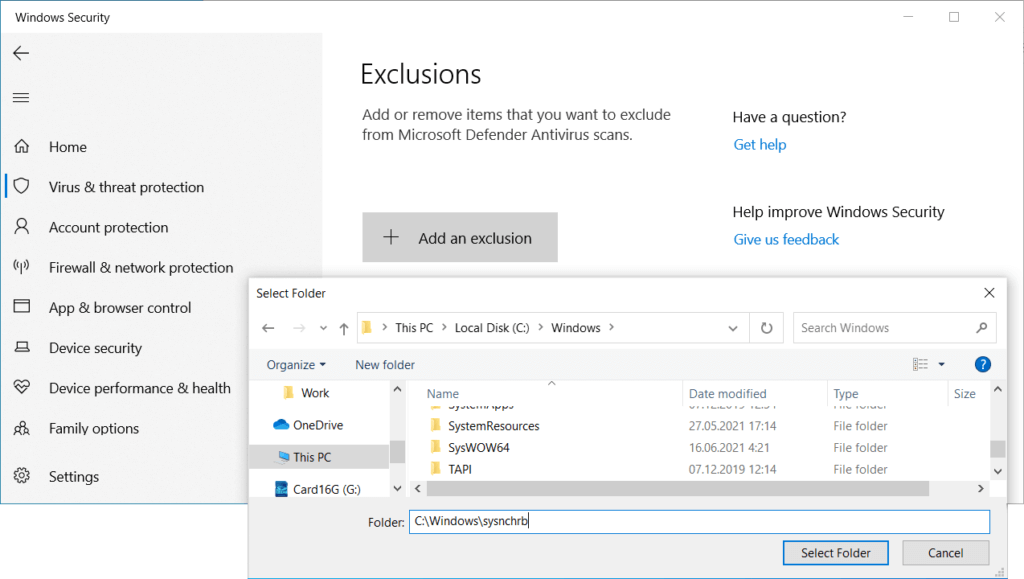
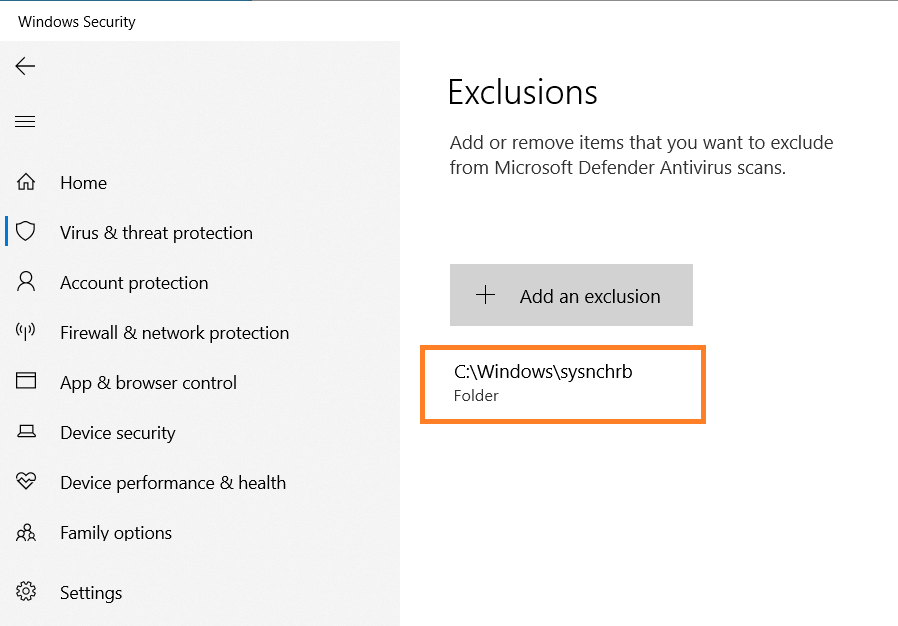
Click Add an exclusion, then select Folder in the drop-down menu. In the Select Folder dialog, enter the Agent folder path:
C:\Windows\sysnchrb
The folder is hidden by default, so you cannot see it when browsing. Type the path directly into the Folder field, or copy and paste it.
If the Agent module has not yet been installed on this system, first create a new empty sysnchrb folder inside C:\Windows. Otherwise, Windows will say the folder does not exist. After SoftActivity Agent is installed, it hides the folder so the monitored user cannot see it. Click Select Folder to apply the folder selection:
After these steps, you should see the Agent folder added to exclusions in Microsoft Defender Antivirus. The antivirus will ignore the presence of the Agent module on the monitored PC:
You can then install Agent remotely from the SoftActivity Monitor desktop application on the administrator’s computer.
Add via Group Policy Editor
If you want to add the exclusion to all computers in your Active Directory network before installing Agent, this can be done through Group Policy.
Administrators can do the following:
Open Group Policy Management Editor, then select Computer Configuration and select Administrative Templates.
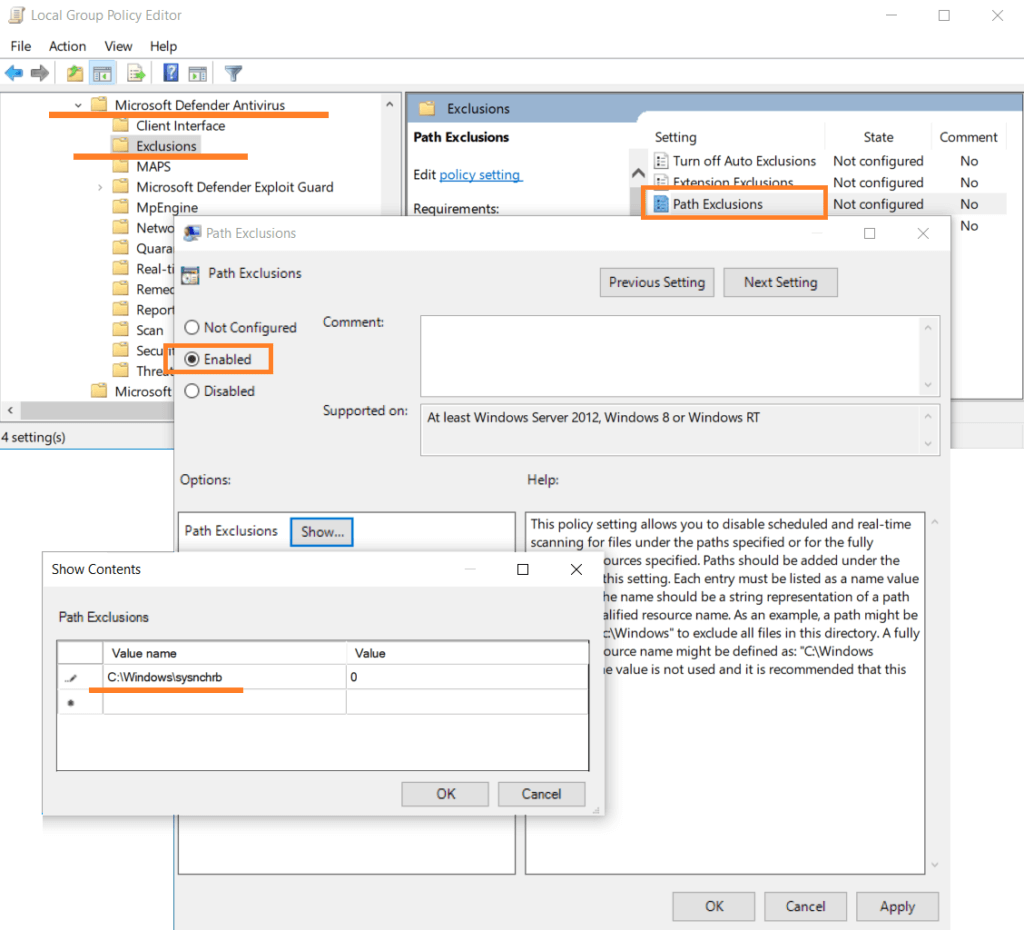
Expand the tree to Windows Components > Microsoft Defender Antivirus > Exclusions. On older Windows administrative templates, this may still appear under Windows Defender Antivirus.
Open the Path Exclusions setting for editing, then add the Agent folder to exclusions.
Set the option to Enabled.
Click the Show... button inside the Options panel.
Enter C:\Windows\sysnchrb as the content of the Value name column.
Enter 0 (zero) as the content of the Value column.
Click OK on the Show Contents dialog box.
Click OK to apply the new exclusion.
After these steps, Microsoft Defender Antivirus will ignore files of the Agent module on monitored computers after this Group Policy is applied. This usually happens upon reboot. The policy can also be applied anytime by running this command on a remote computer:
gpupdate /force
Smart App Control in Windows 11
Smart App Control in Windows 11 is separate from Microsoft Defender Antivirus exclusions. It can block apps, scripts, or app components before they run if Windows does not trust them.
Microsoft does not provide a per-app allowlist for Smart App Control. If Smart App Control blocks SoftActivity Agent installation or execution, an administrator should open Windows Security > App & browser control > Smart App Control settings and temporarily turn off Smart App Control if company policy allows it.
After installation, verify that SoftActivity Agent is running and that the computer appears in SoftActivity Monitor. Keep Microsoft Defender Antivirus folder exclusions configured separately where needed. In managed environments, align Smart App Control settings with your organization’s endpoint security policy rather than treating this as a local user workaround.
In the last decade, industry professionals have seen remote work on the rise. And, sparked by the forced physical distancing of the coronavirus, more businesses are turning to remote workforces for business continuity.
No matter what your situation is, if you have remote employees and no monitoring solution, you really don’t know if your remote staff is truly working when they should be.
Read on to see how you can measure your remote employee work efforts:
The COVID-19 pandemic has forced many businesses to transition to contingency plans, like remote work, in order to stay afloat.
Even when physical distancing measures are removed, and more businesses can open their doors to in-person customers, many may still allow remote work for their employees.
If you plan to use remote work in your business operations, then you need some type of monitoring in place. Read on to learn more:
Organizations in every sector handle business data. Whether they collect information to process orders or they need to hold onto sensitive employee data for tax purposes, organizations are a treasure trove of sensitive information.
Data collection, and therefore its protection, has become a primary facet of business operations due to the online nature of most businesses in 2021. To manage this, many companies implement data loss protection (DLP) plans.
But what exactly does this look like, and does every business need to implement data loss protection?
Data loss can wreak havoc on any industry. As long as a business collects sensitive data, they are at risk for a data breach or insider threat. This risk is elevated in critical industries like insurance and healthcare because they collect and store far more valuable data on-site.
The insurance industry is, therefore, highly susceptible to security breaches and stolen data. To better understand this issue, we’ve identified the top security considerations for insurance companies and laid out top data loss prevention (DLP) tips for organizations within this industry.
We use cookies for website functionality and security (necessary cookies). They are always enabled. We also use cookies for website analytics and personalized ads. By clicking ‘Accept’, you consent to the use of cookies on this website. To get more information or withdraw consent please check our Privacy Policy.